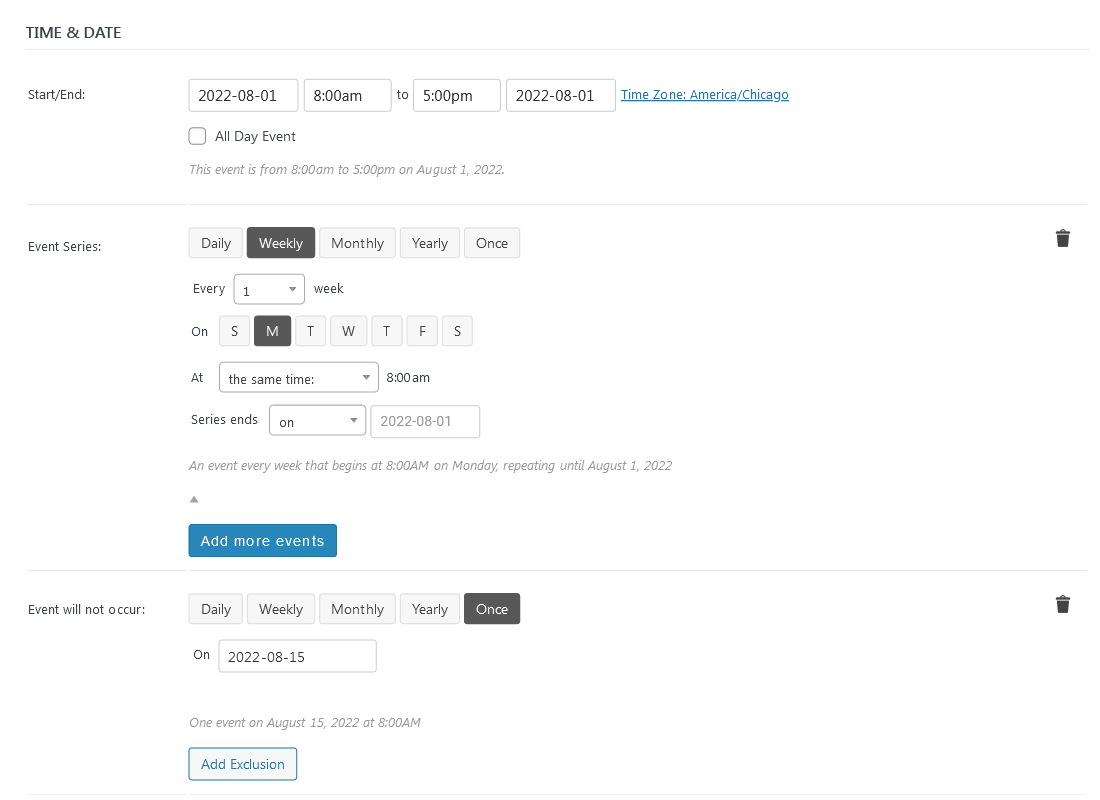
All manner and combinations of recurring events are possible using the expanded capabilities included in the PRO version of the Events Calendar plugin. Using these extensions will greatly reduce (even eliminate) the need to manually copy content across a multi-day event or an event that is scheduled to happen occasionally or sporadically over the course of a week, a month, or a year.
We create a recurring event just as we would a single-day event … well, ninety-percent of it is the same. The basic procedures and content fields illustrated on the Creating a Single Event page apply here, too. The only difference happens with a new scheduling function that exists only in the PRO version of the plugin. (For further guidance, please consult the plugin developer’s instructions: Creating a Recurring Event.)
The magic happens here … where the red arrow points:
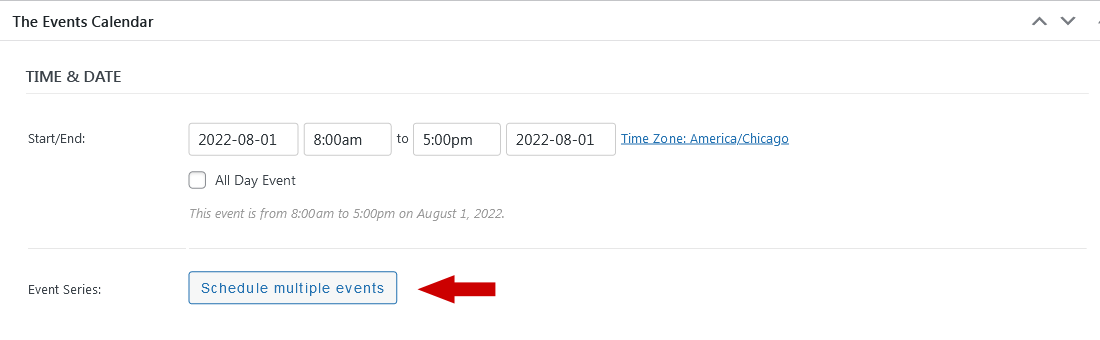
Clicking Schedule Multiple Events will reveal an array of options (Daily, Weekly, Monthly, etc.) that you can use to format the recurring event according to a desired schedule.
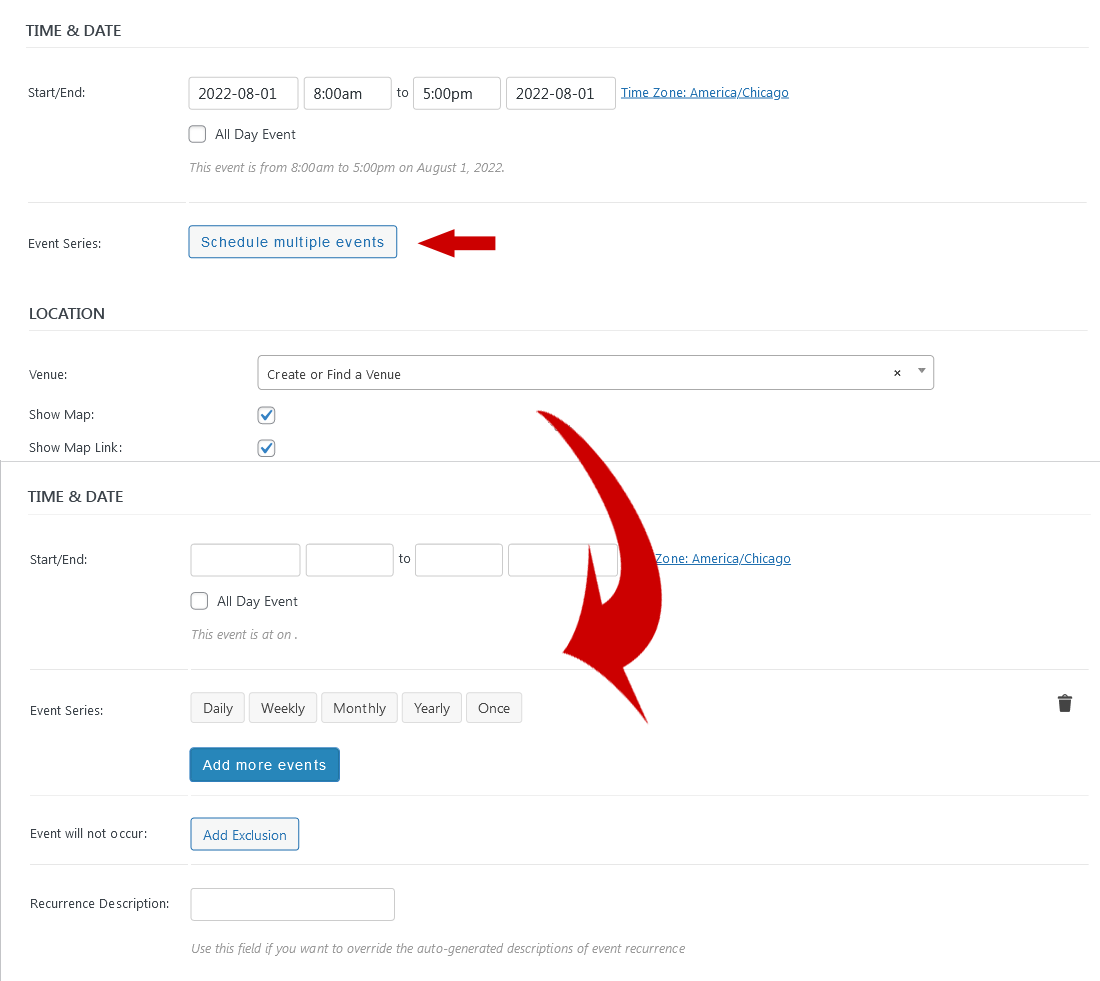
Next, choosing any option (above) will further reveal additional date/time fields to fine-tune the event online display.
Below are examples of some commonly-used recurring events and how each can be scheduled:
One Week (All Day)
Two-day Event (Same Time)
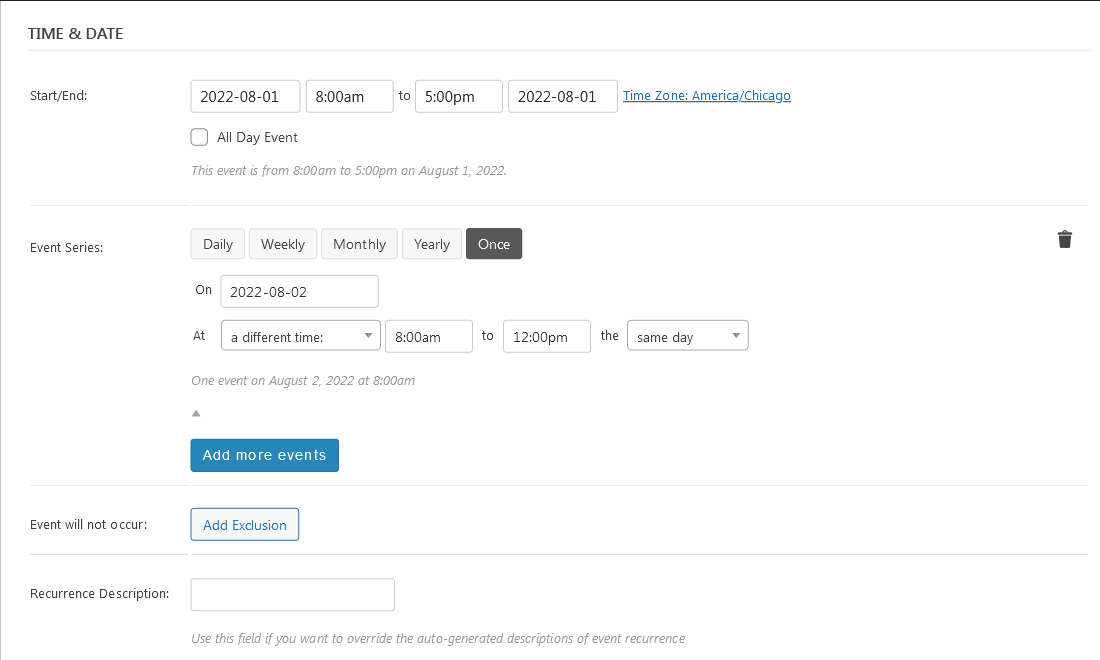
Two-day (Different Times)
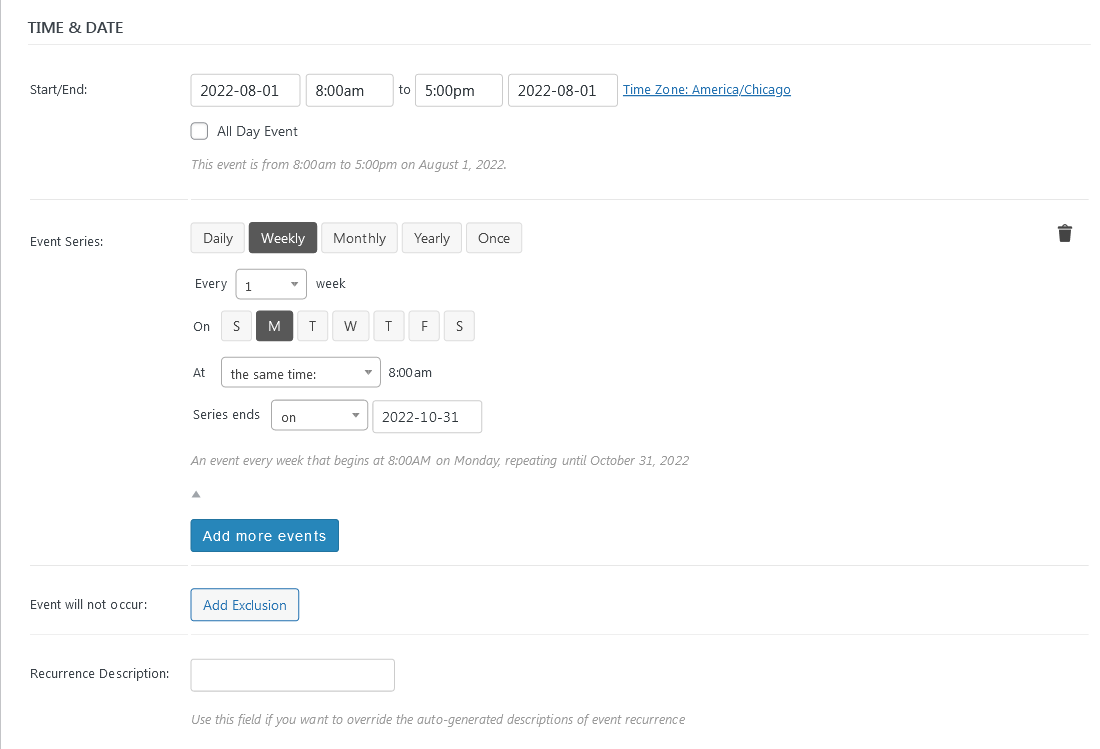
Every Week
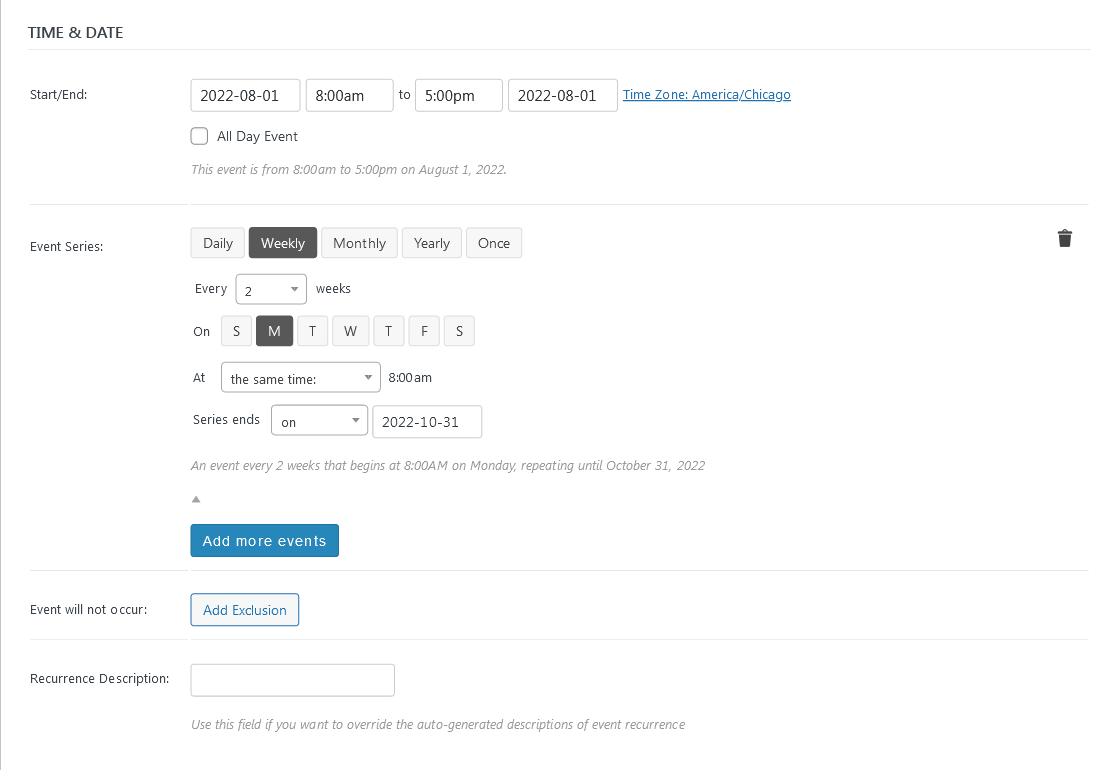
Every Other Week
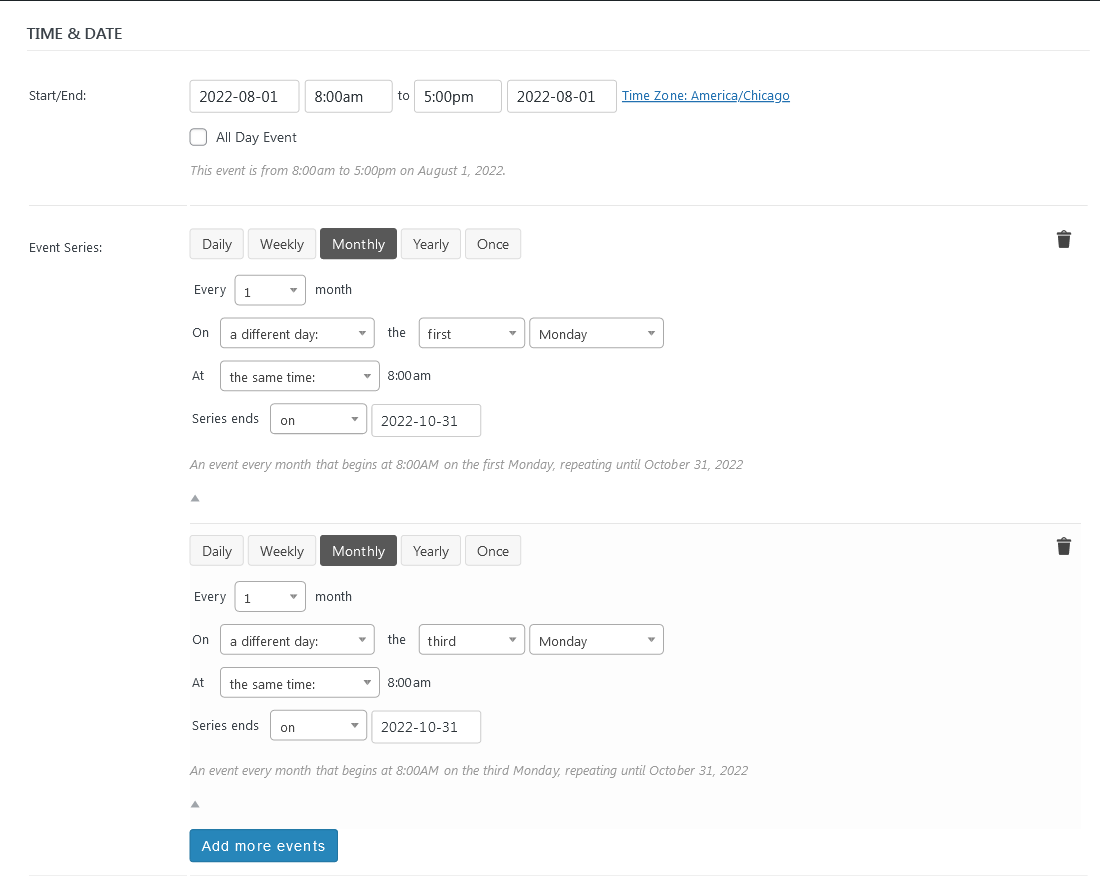
1st & Third (Monday)
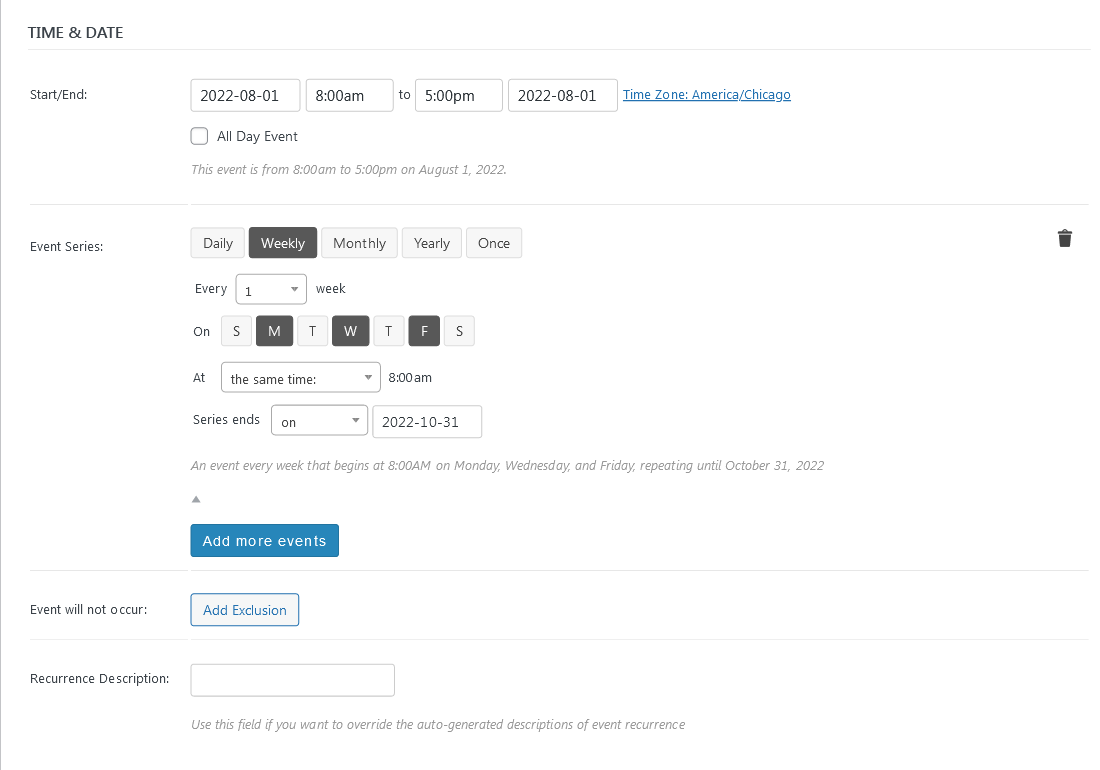
Mon, Weds, Fri (Every Week)
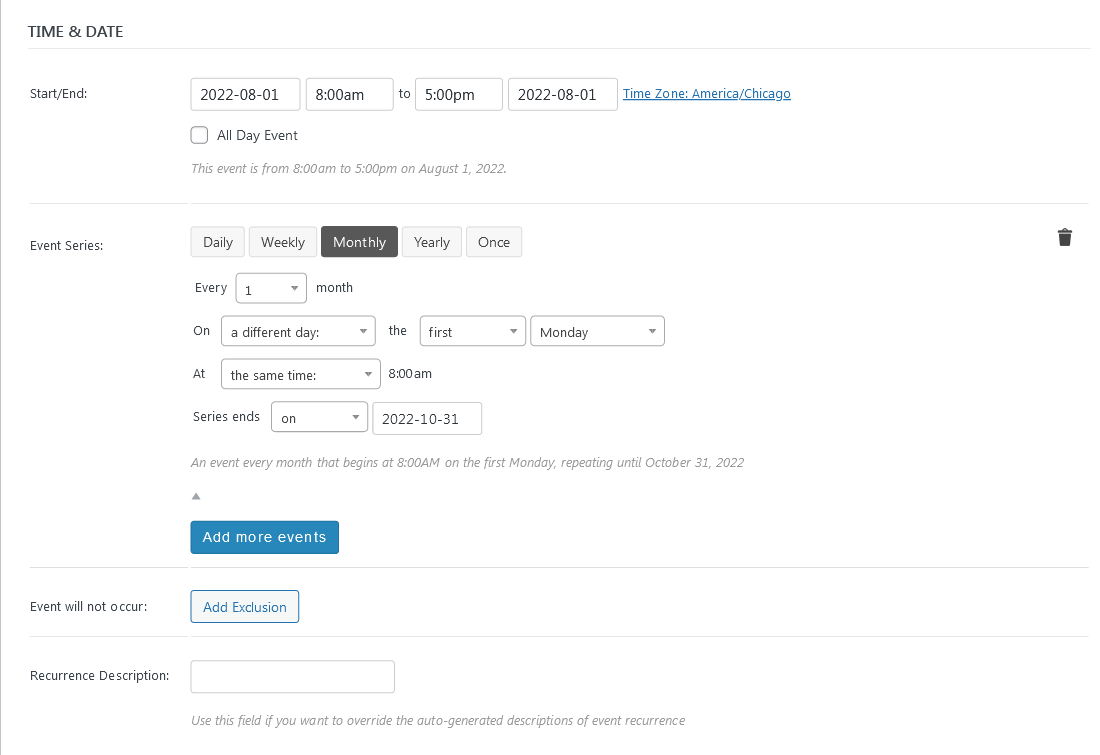
1st (Monday) Every Month
Exclusion
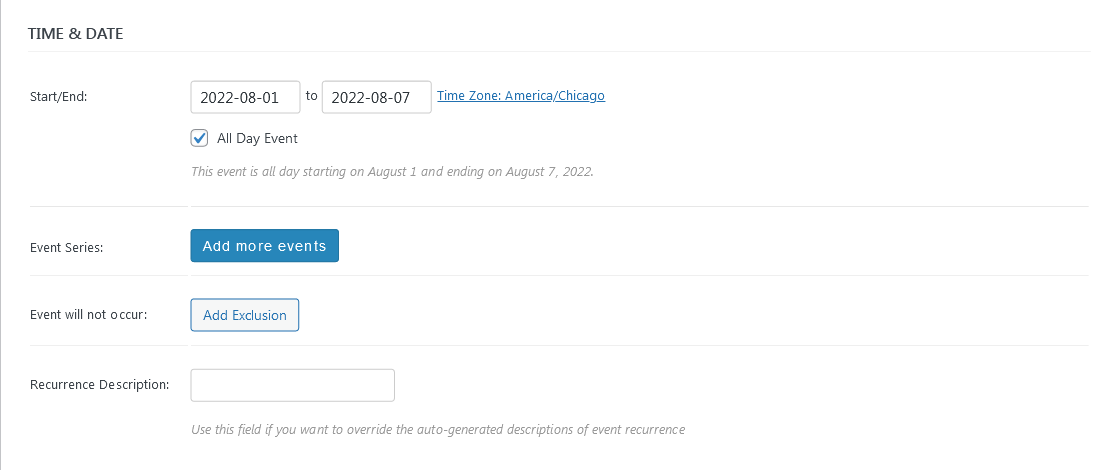
One Week (All Day, e.g., National Sauna Week)
Two-day Event (Same Time)
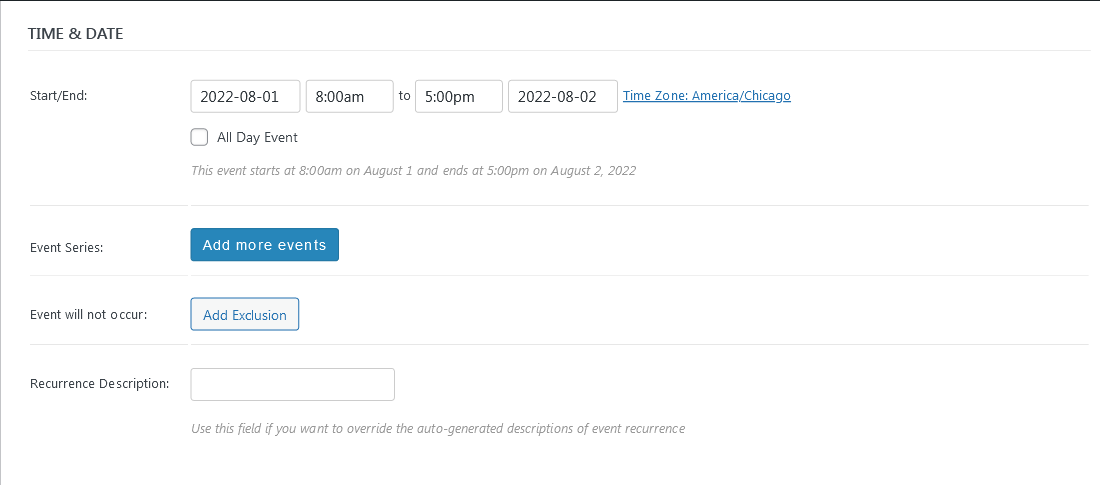
Two-day Event (Different Times)
Every Week
Every Other Week
1st & Third (Monday) Every Month
Mon, Weds, Fri (Every Week)
1st (Monday) Every Month
Exclusion